
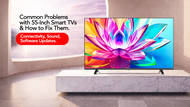
Common Problems with 55-Inch Smart TVs & How to Fix Them
Posted by Akai India | 18th Feb 2026
A modern television is no longer just a screen; it’s the hub of your home entertainment. Whether you’re streaming movies, gaming, or casting content from your phone, a 55-inch smart TV is designed to make life easier and more immersive. But like any connected device, occasional issues can appear. The good news? Most common problems are simple to diagnose and fix without calling for service.
At Akai, we believe technology should feel effortless. Here’s a practical guide to the most common smart TV issues and how to solve them quickly.
Connectivity Problems: Wi-Fi Keeps Dropping
One of the most frequent complaints users face is unstable internet connectivity. Since smart TVs depend heavily on Wi-Fi for streaming and apps, even minor disruptions can affect performance.
Common symptoms:
- Buffering while streaming
- Apps failing to load
- TV disconnects from Wi-Fi repeatedly
Quick fixes:
✔ Restart your router
Turn it off for 30 seconds and power it back on. This clears temporary network congestion.
✔ Reboot the TV
Unplug the TV from power for one minute, then restart. This resets background processes.
✔ Check signal strength
If your router is far from the TV, consider relocating it or using a Wi-Fi extender.
✔ Switch to Ethernet
A wired connection provides more stability than Wi-Fi, especially for 4K streaming.
A premium 55-inch smart TV is built to handle high-speed streaming, but network quality plays an equally important role.
Apps Freezing or Not Opening
Smart TV apps can occasionally freeze due to memory overload or outdated software.
Common symptoms:
- Netflix or YouTube stuck on loading screen
- Apps closing unexpectedly
- Lag when navigating menus
Quick fixes:
✔ Close unused apps
Too many background apps can slow performance. Exit unused applications fully.
✔ Clear app cache
Most smart TV settings allow you to clear stored temporary data.
✔ Update the app
App developers regularly release fixes and performance improvements.
✔ Restart the TV
A simple restart refreshes memory and restores smooth operation.
Regular maintenance ensures your 55-inch smart TV continues to run apps seamlessly.
No Sound or Distorted Audio
Audio problems can feel alarming, but they’re often caused by simple settings or connection issues.
Common symptoms:
- No sound despite the picture working
- Echo or distorted audio
- Volume is stuck or unresponsive
Quick fixes:
✔ Check mute and volume settings
It sounds basic, but accidental remote presses happen more often than expected.
✔ Inspect HDMI connections
Loose cables can interrupt audio signals.
✔ Audio output settings
Ensure the TV is set to the correct speaker mode (internal speakers or soundbar).
✔ Power cycle external speakers
If using a sound system, restart it along with the TV.
Smart sound calibration is part of the experience, and a quality 55-inch smart TV is engineered for balanced audio performance when configured correctly.
Software Update Issues
Software updates are essential; they improve security, performance, and compatibility. But sometimes users postpone updates or experience installation hiccups.
Common symptoms:
- Update is stuck at a certain percentage
- TV restarting during update
- Features are missing after the update
Quick fixes:
✔ Ensure stable internet
Interrupted downloads cause failed updates.
✔ Do not power off mid-update
This can corrupt system files.
✔ Manual update option
Some TVs allow updates via USB if online updates fail.
✔ Factory reset (last resort)
Only if persistent errors occur after updating.
Keeping software current ensures your 55-inch smart TV delivers the latest performance enhancements and security protections.
Screen Lag or Slow Navigation
If menus feel sluggish or the remote response is delayed, the TV may simply need a refresh.
Common causes:
- Overloaded memory
- Outdated firmware
- Too many installed apps
Quick fixes:
✔ Restart the system
This clears the temporary memory overload.
✔ Delete unused apps
Freeing storage improves responsiveness.
✔ Install pending updates
Firmware optimisations often fix lag.
A responsive interface is central to the smart experience, and regular housekeeping helps maintain peak performance.
Casting or Screen Mirroring Not Working
Many users rely on casting from phones or laptops. When it fails, frustration builds quickly.
Quick checklist:
✔ Devices must be on the same Wi-Fi network
✔ Restart both the TV and the phone
✔ Update casting apps
✔ Enable screen mirroring in TV settings
Once synced correctly, casting should reconnect smoothly.
Preventive Maintenance Tips
The best way to avoid issues is proactive care:
- Keep software updated
- Restart the TV weekly to refresh memory
- Avoid overloading with unnecessary apps
- Maintain a stable internet connection
- Use surge protection for electrical safety
Smart TVs are sophisticated devices, but they’re also built to be user-friendly. Most problems are temporary and fixable in minutes.
Final Thoughts
A smart TV should enhance your daily routine, not complicate it. Whether it’s connectivity glitches, sound hiccups, or update delays, the majority of issues come down to simple troubleshooting steps. With proper care and periodic maintenance, your 55-inch smart TV will continue delivering smooth performance, vivid visuals, and immersive entertainment.
At Akai, our goal is to combine technology with reliability, so your focus stays on enjoying the moment, not fixing the screen.
If problems persist after troubleshooting, professional support is always recommended. But in many cases, a quick reset or update is all it takes to get back to uninterrupted viewing.


